Introduction
Poor data quality costs organizations an average of $12.9 million annually, and 76% of companies miss sales quotas due to poor tool adoption. When AI sales enablement is integrated incorrectly, recommendations become generic and ignored, Slack notifications create noise instead of action, and CRM data stagnates, costing deals and eroding rep trust across your entire tech stack.
This guide walks through permission scoping, API configuration, CRM field mapping, and Slack notification logic for a working AI enablement integration. Sales ops or revenue ops admins own this setup, not individual reps, because it requires system-level access to API tokens and CRM field customizations. Follow this framework to build an integration that drives adoption and revenue impact.
Key Takeaways
- Admin access required: CRM administrator rights, Slack workspace owner/admin role, and API credentials from your AI platform are mandatory before setup begins
- Data quality is critical: If CRM records are incomplete or stale, AI recommendations will be irrelevant regardless of Slack configuration, B2B data decays at 22.5% to 70.3% annually
- Three-phase setup: Connect your CRM, configure Slack channels, then activate and validate the AI context layer
- Watch for permission gaps, missing field mappings, and over-broadcasting alerts to Slack, all three have straightforward fixes
- Unified platforms cut complexity: When training, CRM data, and AI coaching share one connection layer, as in Pifini.ai, integration overhead drops significantly
What You Need Before You Begin: Prerequisites and Access Requirements
System Access Requirements
You cannot begin integration without these three access levels in place:
- CRM admin rights: Salesforce System Administrator profile or HubSpot Super Admin role
- Slack workspace permissions: Workspace owner or admin role with app installation rights
- AI platform credentials: OAuth permissions or API keys from your sales enablement platform
Compatibility and Readiness Checks
Run these verification steps before changing any configuration settings:
CRM Field Audit
- Confirm standard fields are populated: deal stage, owner, close date, account name
- Verify custom fields contain data for at least 60% of open opportunities
- Check that last activity dates are updating correctly
Slack Workspace Verification
- Confirm workspace is on a paid plan (app installation requires paid tier)
- Verify IT policy allows third-party app installation
- Identify who holds workspace admin permissions
AI Platform Compatibility
- Confirm native integration support for your specific CRM version
- Check that your CRM hasn't deprecated the API version required
- Verify the platform supports your CRM instance type (Salesforce Classic vs. Lightning, HubSpot Free vs. Professional)
Integration Non-Negotiables
Stop here and resolve these blockers before proceeding:
- CRM data completeness is below 60% on core deal fields, 40% of business objectives fail due to inaccurate data
- Slack app installation is restricted by IT policy without a waiver in place
- Your CRM has deprecated the API version your AI platform requires
- You lack documented admin access to all three systems
Understanding How AI Sales Enablement Tools Connect with CRM and Slack
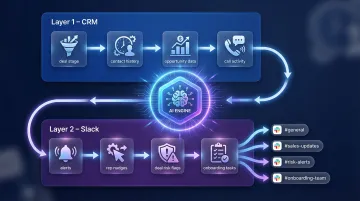
AI sales enablement platforms use a two-layer integration architecture: CRM provides the data foundation; Slack serves as the delivery mechanism.
| Layer | System | Role |
|---|---|---|
| Layer 1 | CRM | Ingests deal stage, contact history, opportunity data, and call activity to feed AI coaching and content recommendations |
| Layer 2 | Slack | Surfaces AI-generated alerts, rep nudges, deal risk flags, and onboarding tasks in the channels where work happens |
How CRM Integration Works
The AI platform authenticates via OAuth or API key, maps CRM objects (Opportunities, Contacts, Accounts) to its internal data model, and establishes a sync frequency. Salesforce uses OAuth 2.0 web server flow, while HubSpot requires OAuth for Marketplace apps.
Field mapping accuracy at this stage directly determines AI output relevance. A field mapped to the wrong object produces useless or misleading recommendations. That's where unified platforms like Pifini.ai reduce complexity: their data model links training completion, certification scores, and AI coaching outputs directly to CRM deal records, removing the need for middleware between training and revenue data.
How Slack Integration Works
Slack integration operates via a dedicated app installed in the workspace. The app receives event-triggered payloads from the AI platform, for example:
- Deal enters new stage → trigger competitive battlecard push to rep's DM
- Rep hasn't logged activity in 5 days → notify manager in deal-specific channel
- New hire completes onboarding module → post certification to team channel
The most critical configuration decision is choosing between Direct Messages (1:1 rep alerts), private channels (deal-specific rooms), and public channels (team-wide announcements). Each serves a different use case. Mixing them without a clear taxonomy creates notification overload.
Step-by-Step: Setting Up Your AI Sales Enablement CRM and Slack Integration
Activating Slack alerts before CRM data is clean broadcasts incorrect signals at scale, and that's harder to recover from than a delayed launch. Work through these phases in order.
Phase 1: Connect and Configure the CRM
Authentication and field mapping:
- Navigate to your AI platform's integration settings
- Initiate the CRM OAuth connection or enter API credentials
- Once authenticated, access the field mapping interface
- Map these minimum required fields:
- Deal/Opportunity Stage
- Close Date
- Account Name
- Primary Contact
- Deal Owner
- Last Activity Date
- Save and run a test sync
- Spot-check 5-10 live opportunities to verify field values match the CRM
Configure sync direction:
Most AI platforms support bidirectional sync, allowing the platform to write back coaching notes, content engagement data, and training status to CRM records.
- Enable bidirectional sync if your goal is tying training and enablement activity to pipeline reporting
- Configure read-only sync if your CRM admin restricts write-back access
- Document the limitation for your revenue ops team if write-back isn't available
Phase 2: Configure Slack Integration
Install the Slack app:
- Install the AI platform's Slack app from the Slack Marketplace or integration panel
- Grant required OAuth scopes during installation:
chat:write– Send messages as the appchannels:read– View basic channel informationusers:read– View people in workspaceim:write– Start direct messages
- Restrict scopes to the minimum required rather than accepting all permissions
- Have your Slack admin confirm app approval before proceeding
With the app installed and approved, the next step is deciding where alerts and coaching nudges will actually land.
Design your Slack channel taxonomy:
Recommended minimum setup:
- #deals-alerts – Pipeline risk flags visible to managers
- #rep-coaching or DM workflow – Individual rep nudges
- #enablement-updates – Training completions and content releases
Configure notification routing:
Route each alert type to the correct channel in the AI platform's Slack settings. Avoid routing all alert types to a single channel, this creates noise and makes alerts easy to ignore.
Phase 3: Activate AI Context Layer and Validate
Enable CRM-dependent AI features:
Activate deal health scoring, next-best-action recommendations, and content surfacing. These features now pull from live CRM data.
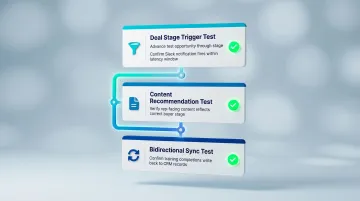
Run three validation tests:
- Deal stage trigger test: Manually advance a test opportunity to a new stage in the CRM and confirm the AI platform triggers the correct Slack notification within expected latency
- Content recommendation test: Verify rep-facing content recommendations reflect the correct buyer stage
- Bidirectional sync test: Confirm training completions or AI coaching events write back to CRM records (if bidirectional sync was enabled)
Conduct a 48-hour live observation:
Have one or two pilot reps use the integration in real deals. Collect feedback on alert relevance and recommendation accuracy. Adjust channel routing or field mappings based on findings before broad launch.
Common Integration Problems and How to Fix Them
Issue 1: AI Recommendations Are Generic or Irrelevant
When AI surfaces the same content or coaching prompts regardless of deal context, the culprit is usually incomplete CRM field mapping, especially missing deal stage or close date fields, or a stale data sync where the AI works from cached snapshots instead of live records.
To fix it:
- Verify every required field has a direct CRM object match in your field mapping configuration
- Check sync logs for errors or authentication timeouts
- Refresh the OAuth token if the connection was set up more than 90 days ago without reauthorization
Issue 2: Slack Alerts Create Noise Instead of Actionable Signals
If reps are muting Slack alerts, the issue is usually too many low-priority notifications firing in the same channel, everything blends together and reps stop paying attention.
Start with a notification audit:
- Review all notification rules in the AI platform's Slack configuration
- Apply severity filters, keep high-frequency channels limited to stage-change events and deal risk flags
- Route routine nudges (training reminders, content suggestions) to individual DMs or a lower-priority channel
- Validate the new cadence with a small rep group before rolling out broadly
Issue 3: CRM Records Not Updating After Integration Goes Live
When bidirectional sync is active but changes don't appear in CRM records, the problem is almost always a permissions gap or a field validation rule that rejects the AI platform's write format.
Check these in order:
- In CRM settings, review field-level security for the integration user profile
- Confirm write access is granted on every mapped field
- Identify any CRM validation rules affecting fields the AI platform updates
- Adjust the validation rule or update the write format in the AI platform's CRM settings to match the expected input type
Pro Tips for Getting the Most from Your AI Sales Enablement Integration
Set a data hygiene baseline before launch, not after:
Run a CRM data audit covering close date completeness, deal owner assignment, and stage accuracy on all open opportunities. Poor data quality can cut AI performance by 30%, and only 4% of organizations have AI-ready data. Organizations addressing data decay through continuous enrichment report a 15% improvement in close rates within six months.
Think in workflows, not notifications:
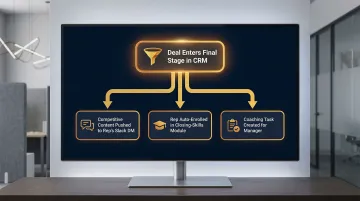
The most effective integrations trigger multi-step automated sequences rather than one-off alerts. For example, when a deal enters the final stage in CRM, the AI platform should simultaneously:
- Push competitive positioning content to the rep's Slack DM
- Auto-enroll them in a relevant closing-skills module
- Create a coaching task for the manager
Pifini.ai executes this type of closed-loop sequence out of the box, linking learning triggers directly to deal-stage events so teams don't need to wire it up manually.
Document your configuration decisions, and maintain a change log:
At setup, log the specifics that are easy to forget but painful to reconstruct:
- Field mappings and sync frequency settings
- Notification rules and trigger conditions
- Permission scopes for each connected system
When configurations drift or new team members inherit the integration, a documented baseline prevents hours of reverse-engineering. When something breaks, you can identify the likely cause in minutes rather than days.
Frequently Asked Questions
What CRM systems do AI sales enablement tools typically integrate with?
Most platforms offer native integrations with Salesforce and HubSpot, Salesforce holds ~21% global market share, while HubSpot is fastest-growing at 20-25% year-over-year. Some also support Microsoft Dynamics. "Native" matters because it enables bidirectional field-level sync rather than one-way data export.
How does Slack integration improve sales enablement outcomes?
Slack integration puts AI coaching and deal alerts into the communication layer where reps already work, eliminating context-switching and surfacing time-sensitive signals before opportunities stall. A Forrester study found Slack for Sales Teams delivered 296% ROI and cut sales cycle duration by 14.6%, in part because faster response drives significantly higher lead conversion rates.
What permissions are required to integrate AI sales enablement tools with CRM and Slack?
You need three things before setup can begin:
- CRM admin access, Salesforce System Administrator or HubSpot Super Admin role
- Slack workspace owner or admin role with app installation rights
- API credentials or OAuth authorization from the AI enablement platform
How do I know if my CRM and Slack integration is working correctly?
Validate with these checks: manually trigger a deal stage change and confirm the correct Slack alert fires, spot-check AI content recommendations against actual deal stage, and verify bidirectional CRM write-back if configured. Monitor with pilot users for 48 hours before full rollout.
Can AI sales enablement tools integrate with both Salesforce and HubSpot simultaneously?
Most enterprise platforms support only one primary CRM connection per workspace. Teams running both CRMs typically designate one as the AI platform's source of truth and sync the other via a CRM-to-CRM connector or middleware tool like Zapier.
How long does it take to set up a CRM and Slack integration for an AI sales enablement platform?
With the right permissions in place, initial connection and field mapping takes 2-4 hours. Full validation, pilot testing, and team rollout realistically requires 1-2 weeks once CRM data cleanup and change management are factored in, longer if you're deploying a comprehensive AI enablement platform, which can take 3-6 months end-to-end.